
THE PAGE MANUAL
Build bigger worlds.
Everything you need to start creating with ParkStarGames tools — from your first PAGE Hub installation to your first editor scene.
The version information below is based on the provided PAGE Hub 0.2.0 screenshot showing Windows PAGE Engine builds 0.10.1 and 0.10.0. This manual is an initial guide, not a guarantee that every described editor control or future feature exists in each build.

GETTING STARTED / 01
Quick Start
Follow this path to move from PAGE Hub to an editable scene.
Open PAGE Hub
Launch your installed PAGE Hub application. The available navigation includes Projects, Templates, Installs and Modules.
Choose an engine version
Go to Installs and review the version list. The supplied reference lists 0.10.1 and 0.10.0 as installed Windows builds.
Open your editor
Use the Open in Editor button in the Installed Engine panel. If it is not available, first verify the engine installation.
Work on a scene
Open an existing project or use the project/template controls supported by your Hub build. Arrange a scene, inspect transforms and save the project.
PAGE HUB / INSTALLATIONS
Install & manage versions
PAGE Hub is the management application for PAGE Engine releases. The Installs screen lets you inspect versions side by side, refresh release information and open an installed editor.
Using the Installs screen
- Launch PAGE Hub and select Installs from the left navigation.
- Use Refresh to request the current release manifest, when a source is configured and available.
- Review each release card for its version, status, date, platform and displayed size.
- Use Open in Editor for the installed editor; Open Folder opens an installation directory.
- Uninstall removes the selected version: make sure it is not needed by any project before confirming.
PAGE HUB / PROJECT WORKFLOW
Projects & Templates
Projects
The PAGE Hub sidebar has a Projects area for accessing your work. Open a project using the controls available in your Hub version.
Before changing engine versions, keep a backup of your project and confirm compatibility with the target editor build.
Templates
The Templates area is intended to help start from an existing configuration where templates are provided.
Template lists and creation dialogs may differ by release; check the actual app before following version-specific instructions.
PAGE HUB / OPTIONAL TOOLS
Modules & Platforms
Select Modules or Manage Modules inside PAGE Hub to inspect optional platform and tool dependencies.
| Module / dependency | Status in supplied screenshot | What it is used for |
|---|---|---|
| Android Build Support | Not installed | Future Android build workflow |
| OpenJDK | Missing | Java toolchain for Android builds |
| Android SDK & NDK | Check module | Android platform SDK and native toolchain |
These labels describe the October 2026 PAGE Hub screenshot only — not the current status of a visitor's machine or confirmed working Android export support.
PAGE ENGINE / EDITOR
Your first editor session
PAGE Engine is the creation environment that PAGE Hub can open. Start with a small scene to learn the editor before attempting a larger world.
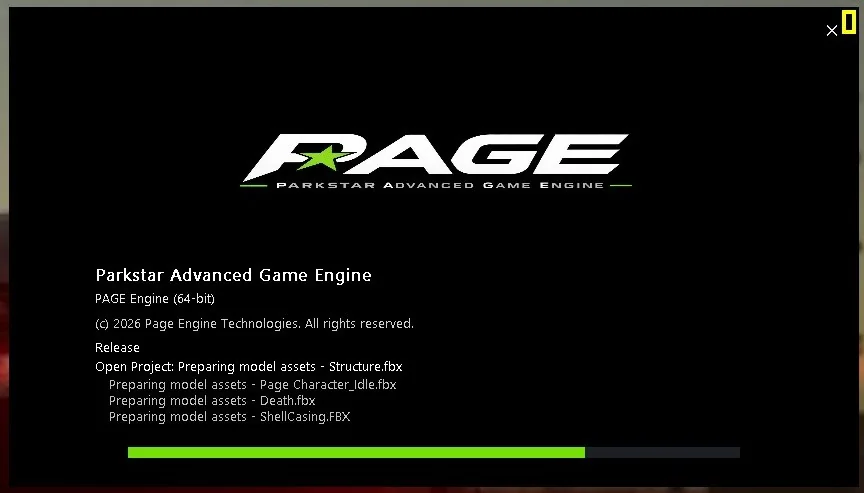
Open the editor
From the PAGE Hub Installs page, find your installed engine and click Open in Editor.
Let the editor finish loading project assets before making changes.
Image: supplied PAGE Engine loading screenshot.
First-scene checklist
PAGE ENGINE / SCENE BASICS
Scene & Inspector
A scene contains the objects that make up your environment. A typical scene-editing cycle is selecting an object, changing its properties, previewing the result and saving your work.
Object selection
Select a GameObject from the scene or object hierarchy.
Transform
Edit the object's position, rotation and scale. The Transform component appears first in PAGE Engine's Inspector.
Components
Inspect any additional components below Transform. Availability depends on the active editor build.
PAGE ENGINE / CONTENT PIPELINE
Assets & packages
Bring content into a project
Plan your content around models, materials, textures and any required dependencies. Check the formats and import controls that your engine build supports.
The ParkStarGames Asset Store displays package previews. Direct website-to-editor installation is not yet connected.
Package installation status
Packages shown on the website currently act as catalog previews. They are not working downloadable PAGE packages, and buying/installing them cannot be completed from this static website yet.
PAGE ENGINE / GRAPHICS
Rendering & development
PAGE Engine's graphics work covers different rendering APIs, scene lighting, materials and render-pipeline architecture. Availability and stability depend on the particular build.
Graphics backends
Projects may expose backend-specific behavior. Only rely on backends documented and tested for your engine build.
Unified pipeline
The PAGE Render Pipeline is an architecture direction; do not interpret the design roadmap as a shipped feature list.
Lighting & quality
Performance and output vary by graphics backend, scene complexity, and supported rendering options.
This section describes development topics rather than making unverified claims about current rendering support.
VERSION CENTER
Versions & releases
PAGE Engine versions are documented from the supplied application screenshot. PAGE Hub 0.2.1 is the latest ZIP provided by ParkStarGames, hosted on Google Drive; the screenshot shows PAGE Hub 0.2.0.

RELEASE DETAILS
PAGE Engine 0.10.1
Stable Windows release shown in PAGE Hub.
| Product | Version | Release date | Platform | Manifest size | Notes |
|---|---|---|---|---|---|
| PAGE Engine | 0.10.1 | 04 Oct 2026 | Windows | 39 MB | Stable |
| PAGE Engine | 0.10.0 | 01 Oct 2026 | Windows | 37 MB | Stable · initial Hub release |
| PAGE Hub | 0.2.1 | Drive upload: 14 Oct 2026 | Windows | 10.0 MB ZIP | Latest provided archive · Google Drive download |
| PAGE Hub | 0.2.0 | Not specified | Desktop screenshot | Not specified | Earlier version · screenshot only |
These entries are a documented snapshot, not a live release feed. PAGE Hub 0.2.1 ZIP now has a Google Drive download link. PAGE Engine installers and older Hub downloads are not linked yet. Google Drive may require a confirmation screen or sign-in if its sharing settings change.
RELEASE HISTORY
Release notes
PAGE Engine 0.10.1 Stable
Identified in the supplied PAGE Hub manifest as the 0.10.1 release for PAGE Hub. The screenshot does not include a detailed technical changelog.
PAGE Engine 0.10.0 Stable
Identified as the initial PAGE Engine 0.10.0 release for PAGE Hub in the supplied version list.
PAGE Hub 0.2.1 Latest download
ZIP archive provided via Google Drive by ParkStarGames. This is the upload date; detailed release notes have not been verified.
PAGE Hub 0.2.0 Shown in UI
The supplied app screenshot documents the Installs screen, side-by-side engine version management and a Modules summary. Release date was not provided.
HELP & DIAGNOSTICS
Troubleshooting
Editor won't open
Confirm the engine is marked Installed in PAGE Hub; inspect the release folder with Open Folder and verify access to files.
No release updates
Try Refresh on Installs and check network access and the configured release manifest source.
Android tools unavailable
Review Modules status. The provided screenshot shows Android Build Support as not installed and OpenJDK as missing.
Missing models or objects
Allow asset preparation to finish, check project paths, and inspect your scene and import requirements before changing engine settings.
FREQUENTLY ASKED QUESTIONS
Common questions
Can I install PAGE Engine directly from this website?+
Not yet. This ZIP includes an offline documentation website and release references, but no verified installer packages or hosted download service.
Which PAGE Engine versions are listed here?+
The confirmed screenshot includes PAGE Engine 0.10.1 and 0.10.0, both shown as stable Windows builds. The supplied screenshot shows Hub 0.2.0; the latest provided Hub archive is 0.2.1.
Will older projects open in a newer version?+
Project compatibility is not confirmed by the supplied version list. Always back up a project and verify support before changing its editor version.
How do I install Asset Store packages?+
Package listings are previews. Actual website purchase, package download and PAGE Hub/Engine installation integration will require a future release.
Is Android build support already available?+
The screenshot shows optional Android-related dependencies, but does not confirm working Android export. Review the exact status of your local Hub modules.
Still need help?
See Privacy & Contact for support options and request preparation.